Projects / ClearWorthPlanner

Formerly ClearWorth. Earlier recorded demos retain their original name and interface.

Windows desktop application · Version 1.3.1

ClearWorthPlanner

A clearer view of your financial life.

Bring income, expenses, accounts, savings, and longer-term planning together in a local-first Windows workspace.

WindowsLocal-firstLight & dark modesPersonal finance
The project

From everyday details to the bigger picture.

ClearWorthPlanner began as a self-contained personal finance application for organizing income, recurring expenses, account balances, and financial review. It combines weekly and monthly planning with annual analysis, savings goals, debt tracking, and a financial calendar.

The application is built around local data ownership. Its core workspace runs on Windows, with financial records stored in a local SQLite database. File imports and optional external integrations support the workflow.

ClearWorthPlanner 1.3.1 adds guided email verification and optional read-only bank linking, clearer import review, and updated branding. Download the Windows installer below; the application source is private.

The latest workspace

Plan, organize, and review.

Configurable financial dashboards

Weekly, monthly, annual, and saved custom dashboards bring metrics, charts, filters, and record drill-down together. Add widgets and customize titles, icons, colors, widths, and heights. In Where your money goes, select a category to focus the chart; select it again or choose Show all categories to restore the full view.

Planned & actual cash flow

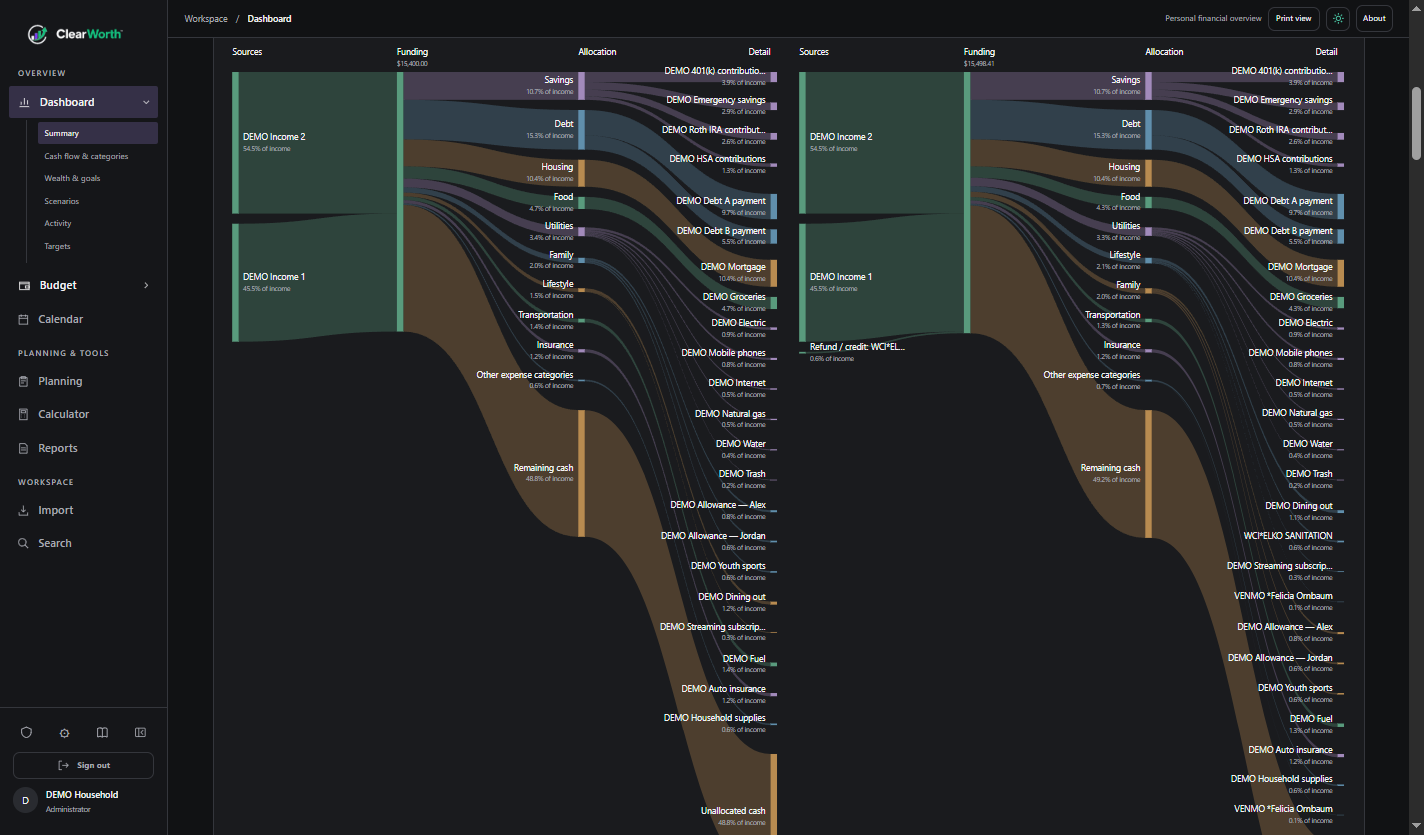
A Sankey diagram traces income sources through savings and expense categories. Switch between Planned, Actual, and Compare, inspect flow details, export CSV, or toggle local calculated commentary. Planned and actual values stay separate; transfers are excluded and linked records count once.

Planning Studio

Explore income, expenses, and savings scenarios using weekly, monthly, and annual planning periods, chart-series toggles, editable bars, trend drawing, and saved models. Actual records, planned schedules, and projected scenarios remain distinct. Choose 1Y, 3Y, 5Y, 10Y, 20Y or 40Y horizons, or start an editable goal with Plan a vacation.

Savings & debt goals

Plan goal allocations from projected income. Projected savings reduce available cash without being treated as ordinary expenses or changing the actual ledger.

Budget & income allocation

Switch between weekly, biweekly, and monthly reviews, search income and expenses, and inspect payment status. Assign paycheck income to expenses and review saved funding allocations.

Calendar workspaces

Organize income, expenses, events, notes, tasks, and subtasks in named calendars, with Month, Week, Day, List, and Timeline views.

Transactions & expense tracking

Find manual transactions, transfers, contributions, and posted-record corrections under Import → Transactions & Expense Tracking.

Import & reconciliation

Keep planned bulk setup separate from actual transaction imports. Use field mapping, staged review, category changes, and guarded void/restore actions.

Accounts, reports & documents

Review account balances, net worth, financial trends, and reports. A redesigned Documents pane makes importing and managing attachments easier to follow.

Financial calculators

Explore pay, tax, retirement, and general calculator categories, inspect calculation explanations, compare employee and contractor scenarios, and save calculations for later review. Estimates depend on entered assumptions.

Help & Learning Center

Follow step-by-step workflows, search financial definitions and calculator references, explore interactive Planned/Actual/Projected explanations, and save guides with a learning checklist. Documentation ships with the app and works offline.

Guided Alerts

Configure Email, ntfy phone push, Slack and Discord with connection tests and clear saved/tested status. Choose lead times, a time zone and quiet hours; messages are discreet by default, with optional details. Recent missed reminders form one catch-up summary per destination within a 24-hour window. Provider authorization or a one-time webhook is still required. Local background delivery needs an awake, connected Windows computer; phone alerts use push, not SMS.

Guided Secure Sync

Verify your email with a code, connect through Plaid, choose accounts, then review activity before importing. Bank linking is optional, requires internet access and depends on service and institution availability. File imports remain available.

Reports & export

Preview monthly, annual, account, and planning reports. Export supported reports to Excel or CSV and use Print / Save PDF without changing financial records.

Editable bank categorization

Review suggested transaction types and categories, assign income, and choose an existing destination account or create one. Remember your choices for matching future activity; you can still edit them.

Settings & appearance

Configure accounts, categories, income types, expense statuses, notification providers, appearance, zoom, and the financial workflow guide. Choose light, dark, or Windows theme behavior.

Backup & recovery

Create local backups, configure automatic backup frequency and retention, and validate backups before restoring. Administrator restore creates a safety backup; selective recovery can restore an eligible deleted user or projection year.
Version 1.3.1 · November 11, 2026

What’s new in ClearWorthPlanner.

Connect with a clearer workflow

Secure Sync guides you through email verification, account selection, and activity review. You can enter a code you already received or request a new one. Email verification can complete independently of bank availability.

Review bank changes comfortably

A clearer review layout separates dates, descriptions, amounts, categories, and actions. Assign income and destination accounts during review, create a missing account, and correct suggested income or expense classifications.

Remember your decisions

Save category, transaction-type, and income-assignment choices for matching future transactions. Suggestions remain editable. Approved imports populate actual income and expense reporting; a sync alone does not approve transactions.

Keep control of your connection

Manage selected accounts and disconnect from Secure Sync. If revocation cannot complete immediately, the request stays queued for retry. Previously imported local transactions remain available.

Simpler document importing

The Documents pane follows the clearer importer layout. Existing budgeting, planning, reporting, and file-import workflows remain available alongside optional bank linking.

ClearWorthPlanner branding

Updated app and installer branding, a centered transparent sign-in logo, a larger navigation logo, and consistent Dashboard and Budget navigation text.

Bank availability

The bank service currently uses Plaid trial access with a limited connection allowance. Public access is not unlimited. Institution and product support vary, and one bank connection per cloud user is currently supported, with multiple selected accounts at that institution. Full access and additional connection workflows are still pending.

Before upgrading

Back up your local financial data. The 1.3.1 installer is unsigned, and automated checks do not replace interactive Windows acceptance testing. Bank linking is optional; a sleeping service may delay the first request.

Inside ClearWorthPlanner

Explore the ClearWorthPlanner workspace.

ClearWorthPlanner: Compare planned and actual cash flow
Compare planned and actual cash flowSide-by-side flow diagrams connect income sources to savings, debt, housing, food, utilities, and other expense categories. Individual records appear at the right of each diagram, with remaining and unallocated cash shown below. The screenshot captures a demo workspace with planned and actual allocations.
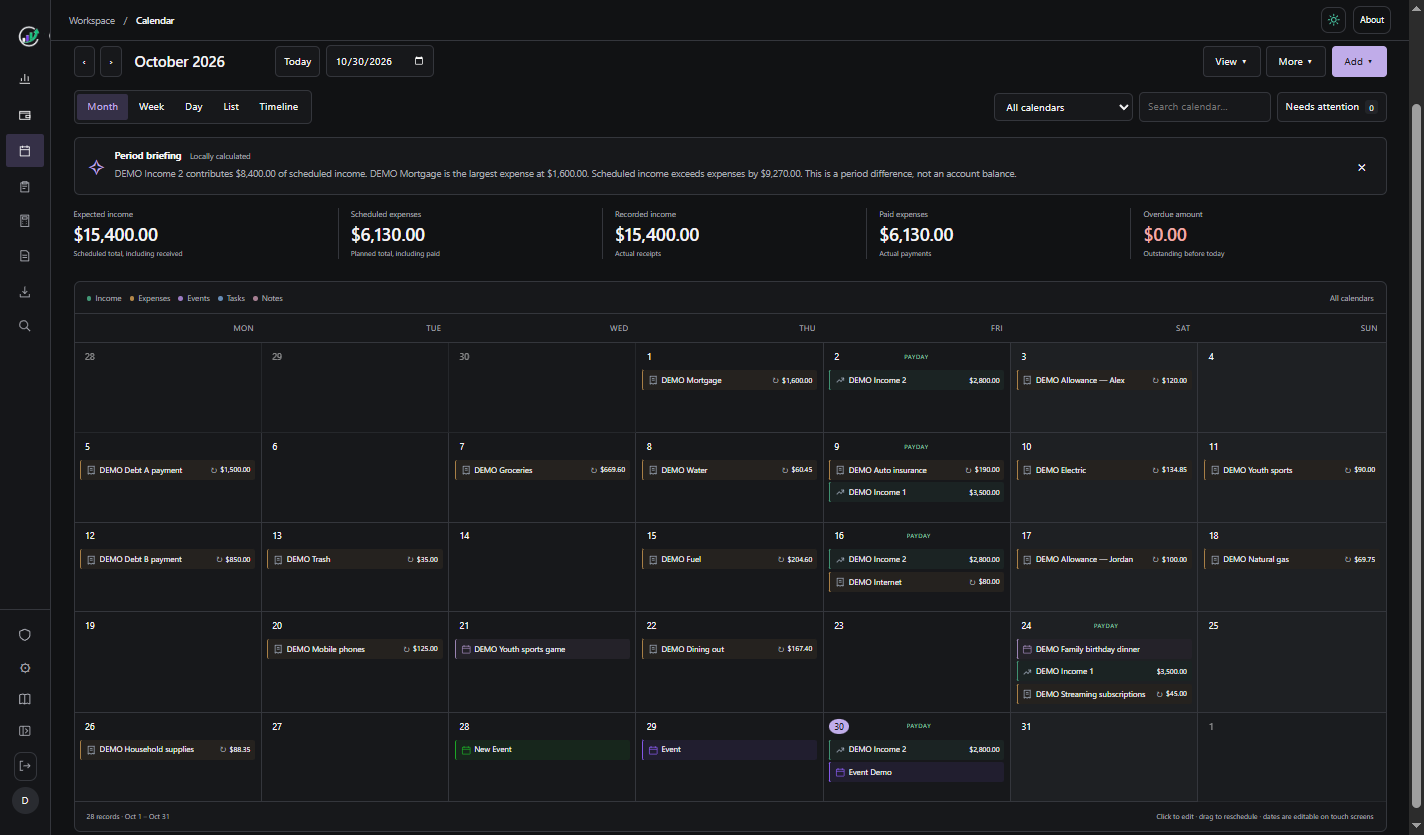
ClearWorthPlanner: Your month at a glance
Your month at a glanceThe October 2026 month view brings paydays, bills, and events into one calendar. A period briefing sits above expected income, scheduled expenses, recorded income, paid expenses, and overdue totals. Calendar filters, search, view selectors, and Add controls help organize the visible schedule.
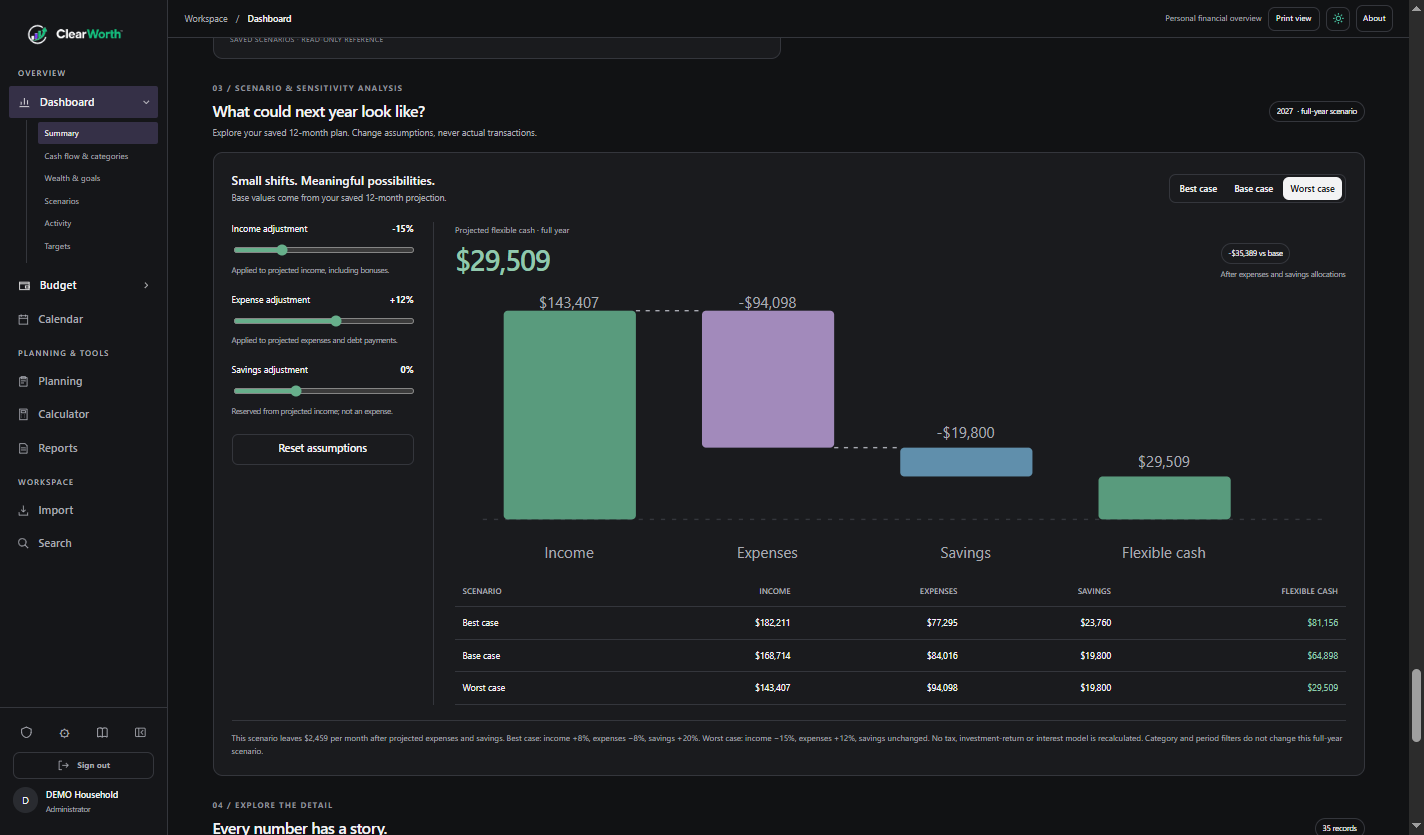
ClearWorthPlanner: Explore next-year possibilities
Explore next-year possibilitiesA saved full-year scenario compares best, base, and worst cases. Income, expense, and savings sliders feed a waterfall chart of projected income, expenses, savings allocations, and flexible cash, with a comparison table below. The captured worst case applies lower income and higher expenses; these are planning assumptions rather than changes to actual transactions.
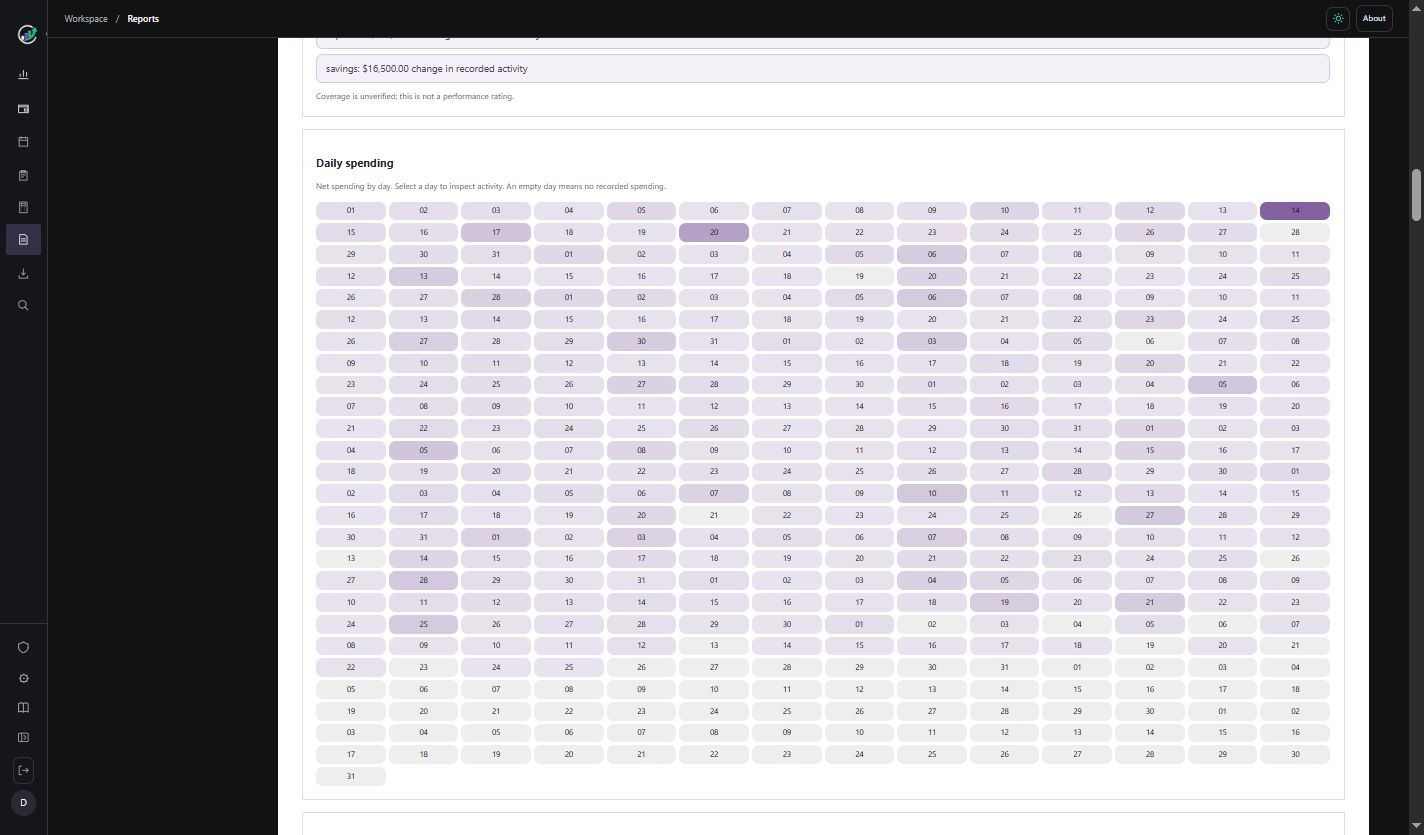
ClearWorthPlanner: Daily spending at a glance
Daily spending at a glanceThe report presents net spending by day as a grid of shaded date cells. Purple intensity distinguishes activity across the displayed dates; the on-screen guidance invites users to select a day to inspect its activity and explains that an empty day means no recorded spending.
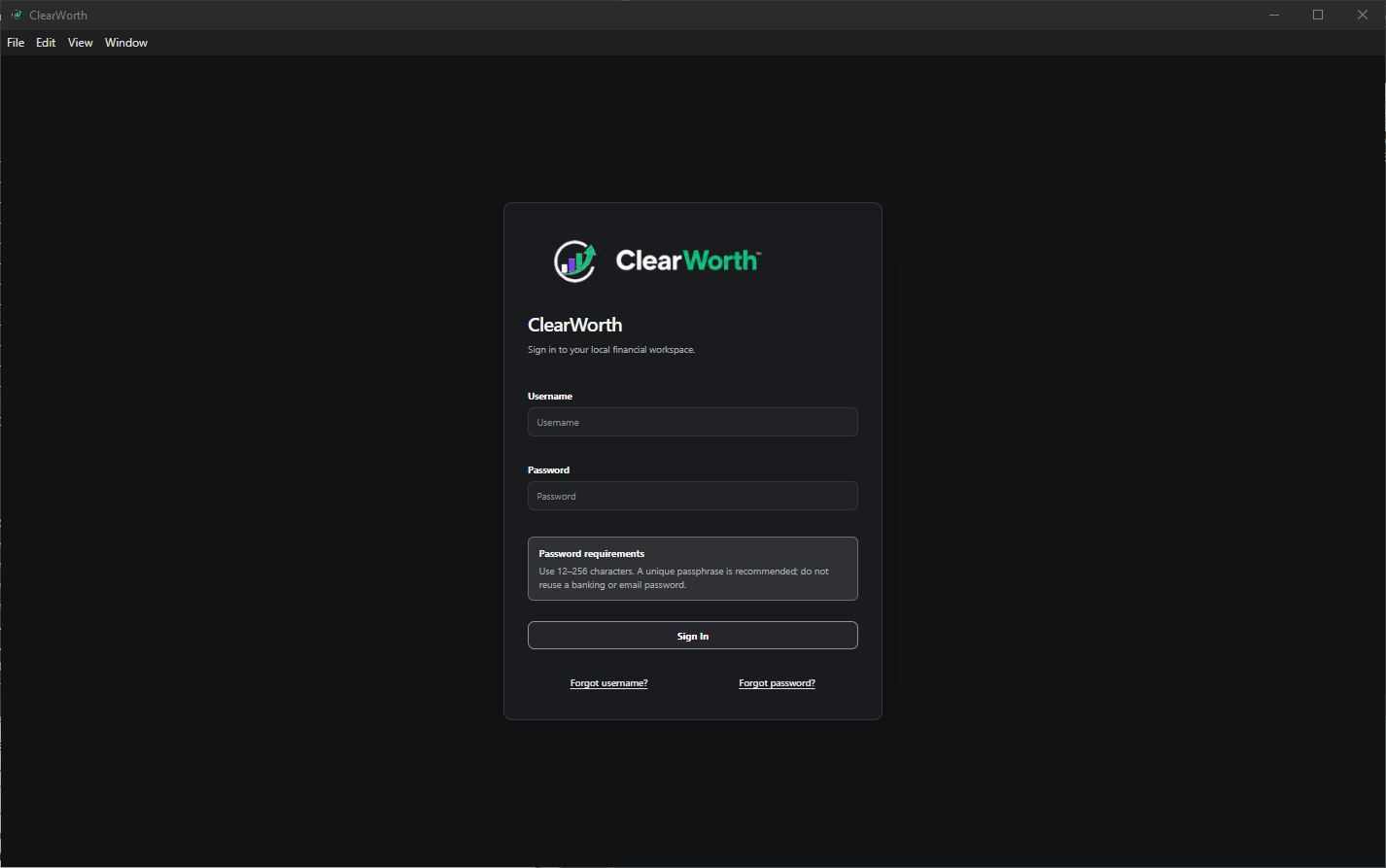
ClearWorthPlanner: Sign in to your local workspace
Sign in to your local workspaceThe desktop sign-in screen includes ClearWorthPlanner branding, username and password fields, a Sign In button, and separate username and password recovery links. The visible password guidance calls for 12–256 characters and recommends a unique passphrase.
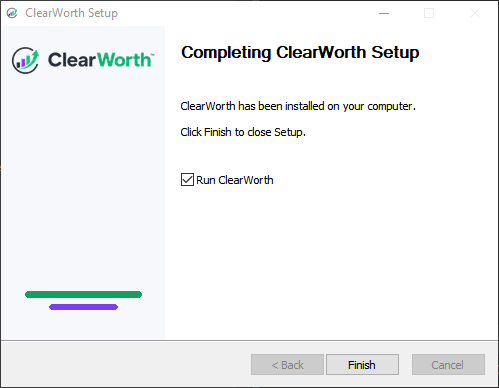
ClearWorthPlanner: Windows setup complete
Windows setup completeThe Windows installer completion screen confirms that ClearWorthPlanner has been installed. Run ClearWorthPlanner is selected, and the Finish button closes Setup and launches the application when that option remains checked.
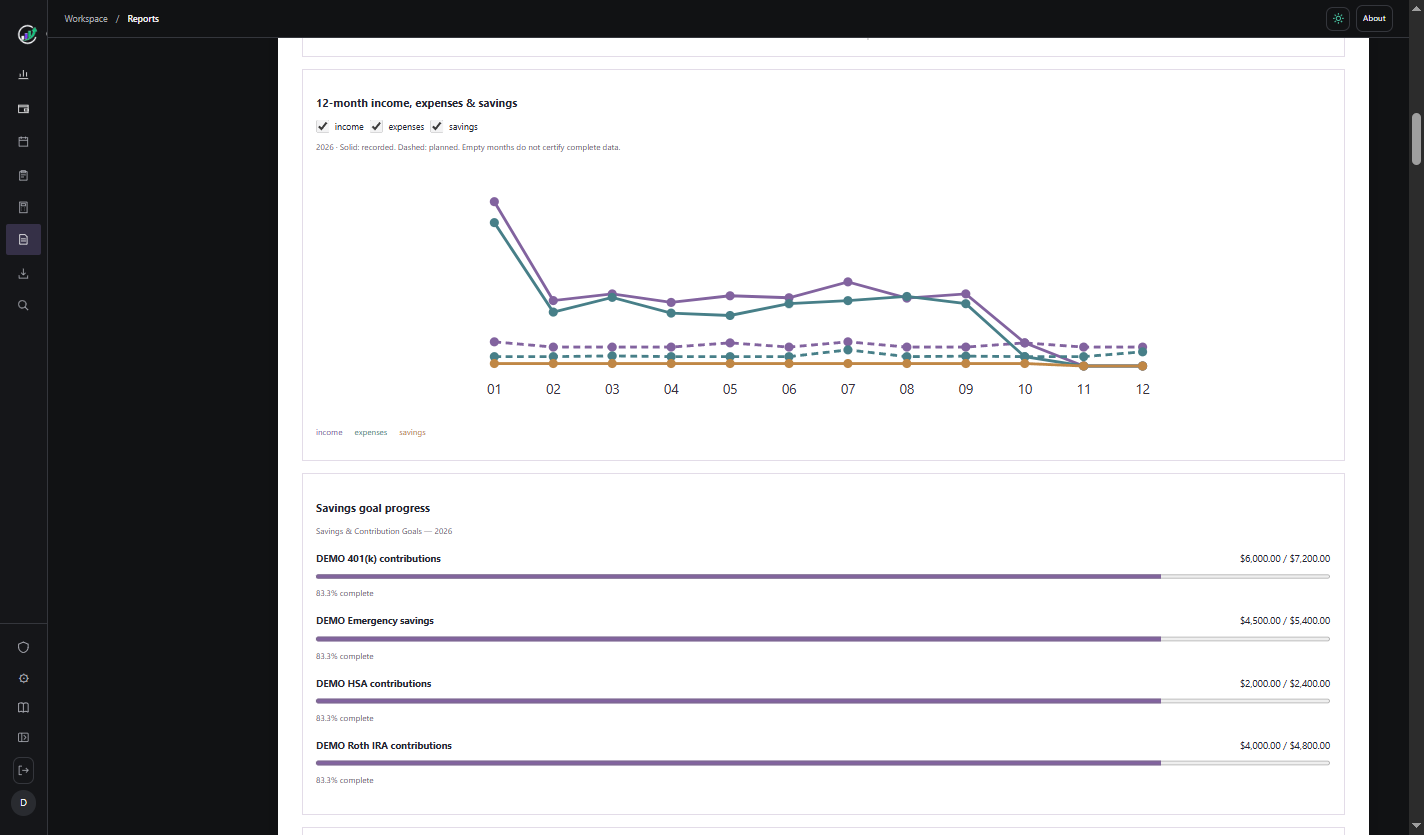
ClearWorthPlanner: A year of income, expenses & savings
A year of income, expenses & savingsThe report compares 12 months of income, expenses, and savings, with checkboxes for each series. Solid lines represent recorded activity and dashed lines represent planned figures. Below the chart, savings-goal progress bars show contributions toward demo retirement, emergency savings, HSA, and Roth IRA targets.
ClearWorthPlanner in action

Explore the workflows.

Dashboard tour & customization

3:17 · Silent

Review planned and actual cash flow side by side, inspect an expense in a right-side detail panel, browse the records behind the dashboard, and explore the widget library for a custom dashboard.

Read the text walkthrough
  1. Compare income, savings, expenses, and remaining cash in the flow diagrams.
  2. Open a financial record to inspect its details.
  3. Browse the underlying records and financial targets.
  4. Open the widget library to explore dashboard additions.
Open full-size video (MP4) ↗

Dashboard details & themes

0:22 · Silent

Explore a custom dashboard with income, expense, and savings totals, trend charts, supporting records, and financial targets. The recording switches from dark to light appearance and shows the same workspace in both themes.

Read the text walkthrough
  1. Review the custom dashboard summary and charts.
  2. Scroll through supporting records and financial targets.
  3. Switch between dark and light appearance.
Open full-size video (MP4) ↗

Paycheck budget

1:55 · Silent

Review a monthly paycheck budget with income sources, expense rows, payment statuses, savings, and available cash. The recording explores period controls, Add, View, and More menus, funding information, and expense filters.

Read the text walkthrough
  1. Review the monthly summary and individual income cards.
  2. Scroll through expense rows and payment statuses.
  3. Explore the period selector and budget action menus.
  4. Filter expenses by funding status.
Open full-size video (MP4) ↗

Financial calculators

1:13 · Silent

Adjust calculator inputs and sliders to compare employee and contractor compensation, review calculated totals and charts, and explore how changing an input affects results. The recording also demonstrates an hourly-to-salary calculation and calculator layout controls.

Read the text walkthrough
  1. Adjust compensation inputs and compare the displayed results.
  2. Review the result breakdown and input-sensitivity chart.
  3. Explore the hourly-to-salary calculator.
  4. Open calculator display and layout options.
Open full-size video (MP4) ↗

Calendar views & event editing

2:08 · Silent

Explore the financial calendar, edit an event in a full-height right-side panel, and use calendar views and workspace controls to organize financial dates. The recording shows event fields, calendar selection, time slots, pay-cycle controls, and visibility options.

Read the text walkthrough
  1. Open an event and review its date, time, description, and color fields.
  2. Explore the event creation panel.
  3. Navigate calendar views and select a named calendar.
  4. Review time-slot, pay-cycle, and workspace visibility controls.
Open full-size video (MP4) ↗

Reports & financial review

1:18 · Silent

Explore report types and reporting periods, review a monthly financial summary, and scroll through budget, expense, and income-funding tables. The recording also shows net worth and account analytics, chart selections, report commentary, and detailed financial records.

Read the text walkthrough
  1. Review the monthly summary and its supporting tables.
  2. Use the report type and period controls to change the preview.
  3. Explore net worth and account analytics, chart options, and commentary.
  4. Scroll through the detailed records behind a report.
Open full-size video (MP4) ↗

Customize a dashboard widget

0:11 · Silent

Open the customization panel for the Where your money goes widget. The full-height panel includes the widget title and explanation, icon and color choices, descriptions, text alignment, legend placement, chart palette, and a preview with style controls.

Read the text walkthrough
  1. Open the widget editing control on the dashboard.
  2. Review the title, explanatory text, and icon options.
  3. Explore colors, description visibility, alignment, and legend placement.
  4. Review the widget preview and Apply style control.
Open full-size video (MP4) ↗

Import & review transactions

0:57 · Silent

Explore the Actual Transactions import workflow, from choosing a bank export and destination account to reviewing staged rows. The recording shows transaction filters, category selections, exclusion controls, and import history for previous batches.

Read the text walkthrough
  1. Open Import and choose Actual Transactions.
  2. Select a destination account and bank export file.
  3. Review staged transactions and use row filters and category controls.
  4. Open History to inspect previous import batches.
Open full-size video (MP4) ↗

Planning & savings scenarios

1:46 · Silent

Create an event or savings goal, inspect its funding schedule, and review how it fits into a month-by-month projection. The recording explores saved scenarios, projection controls, projected financial totals, and a cost-of-waiting chart. Planning changes are presented separately from actual financial records.

Read the text walkthrough
  1. Open the event or savings-goal panel and enter a goal date and cost.
  2. Review the resulting goal and its savings schedule.
  3. Inspect first-year monthly details and projected changes.
  4. Explore saved scenarios, projection controls, and the cost-of-waiting chart.
Open full-size video (MP4) ↗

Search & export results

0:44 · Silent

Search the financial workspace and review matching records with descriptions, dates, and amounts. The recording narrows results with search text, explores a query with no matches, and opens the export panel with record-selection, account-name masking, notes, CSV, Excel, and Print / Save PDF options.

Read the text walkthrough
  1. Review the initial record list and enter a search term.
  2. Inspect the filtered results and explore search criteria.
  3. Review the no-matching-records state and available reset controls.
  4. Open Export results to review output formats and export settings.
Open full-size video (MP4) ↗

Security, settings & help

0:29 · Silent

Explore local account administration, the Settings backup and recovery section, and the built-in Help guide. The recording shows local-user creation fields and roles, automatic-backup and retention controls, restore validation and selective-recovery controls, then ends at the local sign-in screen.

Read the text walkthrough
  1. Review the Security page and local-user administration fields.
  2. Open Settings to inspect backup frequency, retention, folder, and recovery options.
  3. Browse Help and its workflow guidance.
  4. Return to the local sign-in screen.
Open full-size video (MP4) ↗

Help & Learning Center

Help walkthrough

See the built-in Help & Learning Center in ClearWorthPlanner. The app includes step-by-step workflow guidance, financial definitions, and calculator references that are available offline.

Read the text walkthrough

This video demonstrates ClearWorthPlanner’s Help & Learning Center and its in-app guidance.

Open full-size video (MP4) ↗
Behind the app

Built for the desktop.

React interfacePages, forms, themes, and financial views
Electron applicationDesktop runtime and application services
SQLite databaseLocal records and balance history
ClearWorthPlanner technology and software
TechnologyRole in ClearWorthPlanner
ElectronRuns the Windows desktop application and connects the interface to desktop services.
React & React DOMBuild and render the application interface, including forms, navigation, and financial views.
TypeScript, TSX, JavaScript & CSSApplication logic, typed React components, runtime scripts, styling, and themes.
SQLite & better-sqlite3Store financial records locally; SQL migrations manage changes to the data structure.
ViteSupports interface development and creates the production renderer build.
ExcelJSSupports XLSX reports and spreadsheet import workflows.
Argon2Provides Argon2id hashing for local user passwords.
NodemailerSupports SMTP email delivery when email settings are configured.
Plaid, Supabase & BrevoSupport optional bank consent, verified cloud identity, protected connection storage, and verification email through a dedicated service.
electron-builder & NSISPackage the Windows application and create its installer.
Node.js, npm & PowerShellSupport development, dependency management, Windows validation, and release tooling.

Separated application layers

The React interface communicates with desktop services through Electron's preload and IPC boundary. Database work belongs to the application layer rather than direct browser access.

Local financial ownership

The core financial database resides on the Windows installation. File imports, reports, and backup tools support local workflows. Optional bank linking also uses cloud connection records and bank-data previews; it is not an entirely local service.

Security & privacy

Protection across the local workspace.

Protected local sign-in

Local account passwords are hashed with Argon2id. The current password policy requires 12–256 characters; account passwords are not stored in a reversibly encrypted form.

Lockout & session controls

Administrators can configure failed-login lockout thresholds, lockout duration, and session timeout. Administrator password resets require a password change at the next sign-in.

Roles & data ownership

Administrator, Editor, and Viewer permissions are checked in application services and privileged requests. Protected financial changes require the appropriate role, and user data is scoped by ownership.

Windows-protected secrets

Expense website passwords are encrypted with Electron safeStorage in the main process. Notification passwords, OAuth tokens, and webhook secrets use a separate OS-protected provider store outside the finance database.

Desktop isolation

The interface runs with context isolation and sandboxing enabled, and Node integration disabled. Privileged IPC requests validate the sender; unexpected navigation and new windows are blocked.

Account recovery safeguards

Recovery uses hashed, one-time challenges with a 15-minute expiry and limits on invalid attempts. Generic responses help avoid revealing whether an email address belongs to an account.

Safer file workflows

Native file dialogs issue short-lived selection tokens rather than accepting arbitrary paths from the interface. Spreadsheet imports receive file and XLSX-container checks, including limits on expanded content and checks for unsafe entry paths. CSV exports neutralize formula-like text.

OAuth & provider controls

Supported email OAuth flows use Authorization Code with PKCE, S256 challenges, and state validation in the system browser. Slack and Discord webhook URLs are restricted to supported provider endpoints.

Optional read-only bank access

Plaid handles bank consent and authentication. The dedicated service stores bank access tokens encrypted with AES-256-GCM, checks verified identity for bank requests, and limits data to the signed-in user. This integration reads account and transaction data; it does not initiate payments.

Audit & recovery records

Security and recovery activity is recorded in audit logs. Administrative JSON exports omit stored password ciphertext, and full restore creates a safety snapshot with rollback if restoration fails.

Credential handling

Saved expense passwords are not returned to the interface. Copy Password decrypts in the main process and writes to the OS clipboard; the app attempts to clear it after 60 seconds if the copied value remains unchanged.

OS-protected secrets may depend on the Windows profile or computer. Moving data to another profile or machine may require re-entering saved credentials and provider settings.

Scope of protection

OS-backed encryption applies to saved secrets. The project does not document whole-database or whole-backup encryption, so local financial files and backups still need appropriate Windows and storage protection.

Provider authorization and network settings remain part of integration setup. Remote ntfy connections should use HTTPS, especially when authentication is enabled.

Download

Install ClearWorthPlanner for Windows.

ClearWorthPlanner 1.3.1 · Windows 10/11 x64

Download the installation file, back up existing financial data, and run Setup. No source-code extraction or developer commands are required.

The 1.3.1 release includes the installer, SHA-256 checksums, software inventory, third-party notices, and validation notes. Application source is kept private.

Unsigned installer: verify the downloaded file against the published checksum before installing. Windows may display an unknown-publisher warning. Automated validation does not establish independent security certification or complete interactive Windows acceptance.

Optional bank linking currently has limited Plaid trial availability. You can use the local workspace and file imports without linking a bank.

Open the downloaded installer, or run & "$HOME\Downloads\ClearWorthPlanner.Setup.1.3.1.exe" in PowerShell, adjusting the path if necessary.

← Back to all projects